> ## Documentation Index
> Fetch the complete documentation index at: https://docs.generalreferral.com/llms.txt
> Use this file to discover all available pages before exploring further.
# Notifications
Stay on top of team activity with in-app and email notifications.
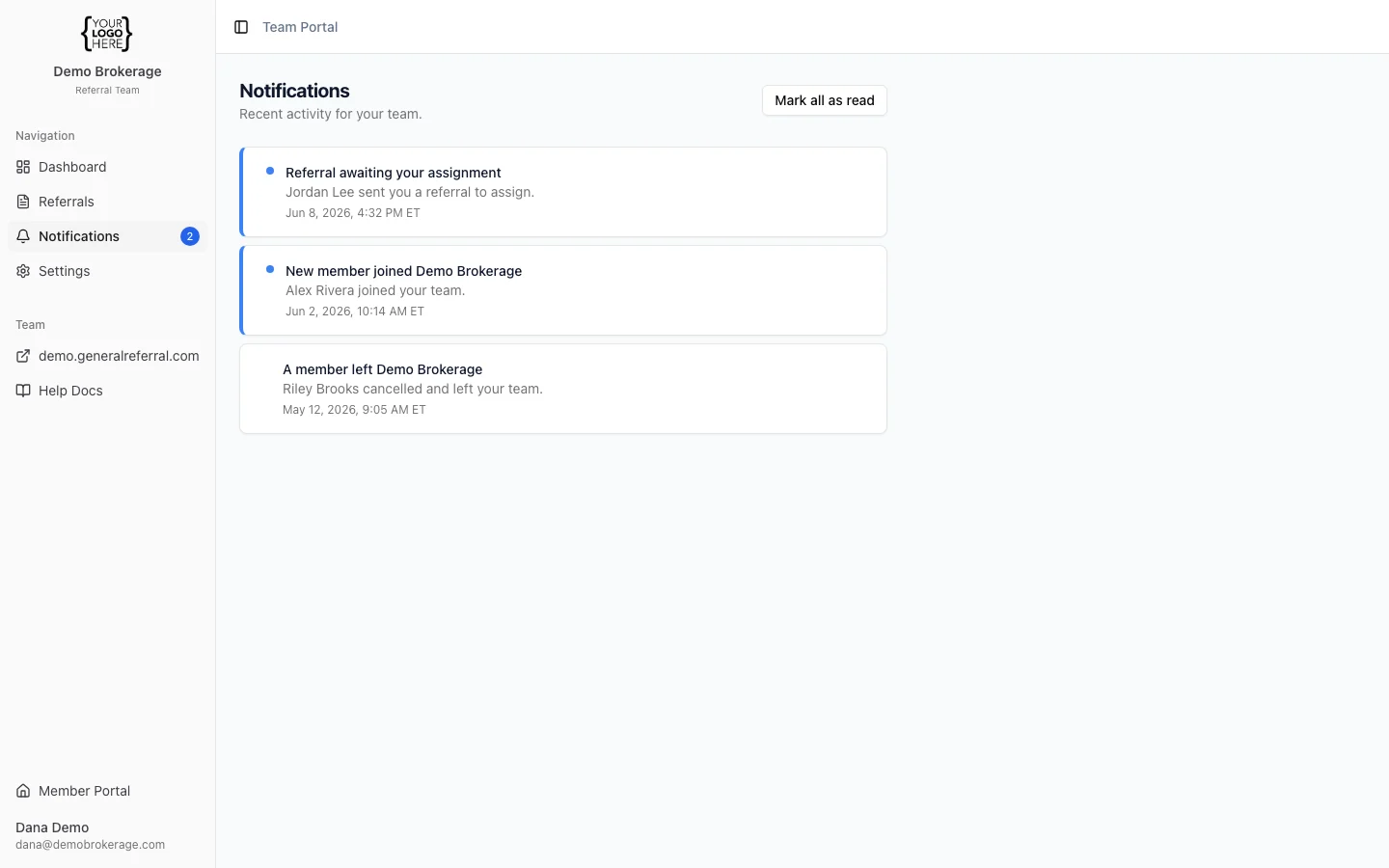 **Two ways you're notified:**
* **In-app feed** — open **Notifications** in the portal. A badge on the menu shows
how many are unread; "Mark all as read" clears it. The in-app feed is always
on — every team event lands here.
* **Email** — the same alerts can also be sent to your inbox. You choose which.
**What you're notified about:**
* **A new member joins** your team
* **A member leaves** (their subscription is canceled)
* **A referral awaits your assignment** — a team member delegated a referral
for you to assign (see *Delegated Referrals*)
**Turning emails on:**
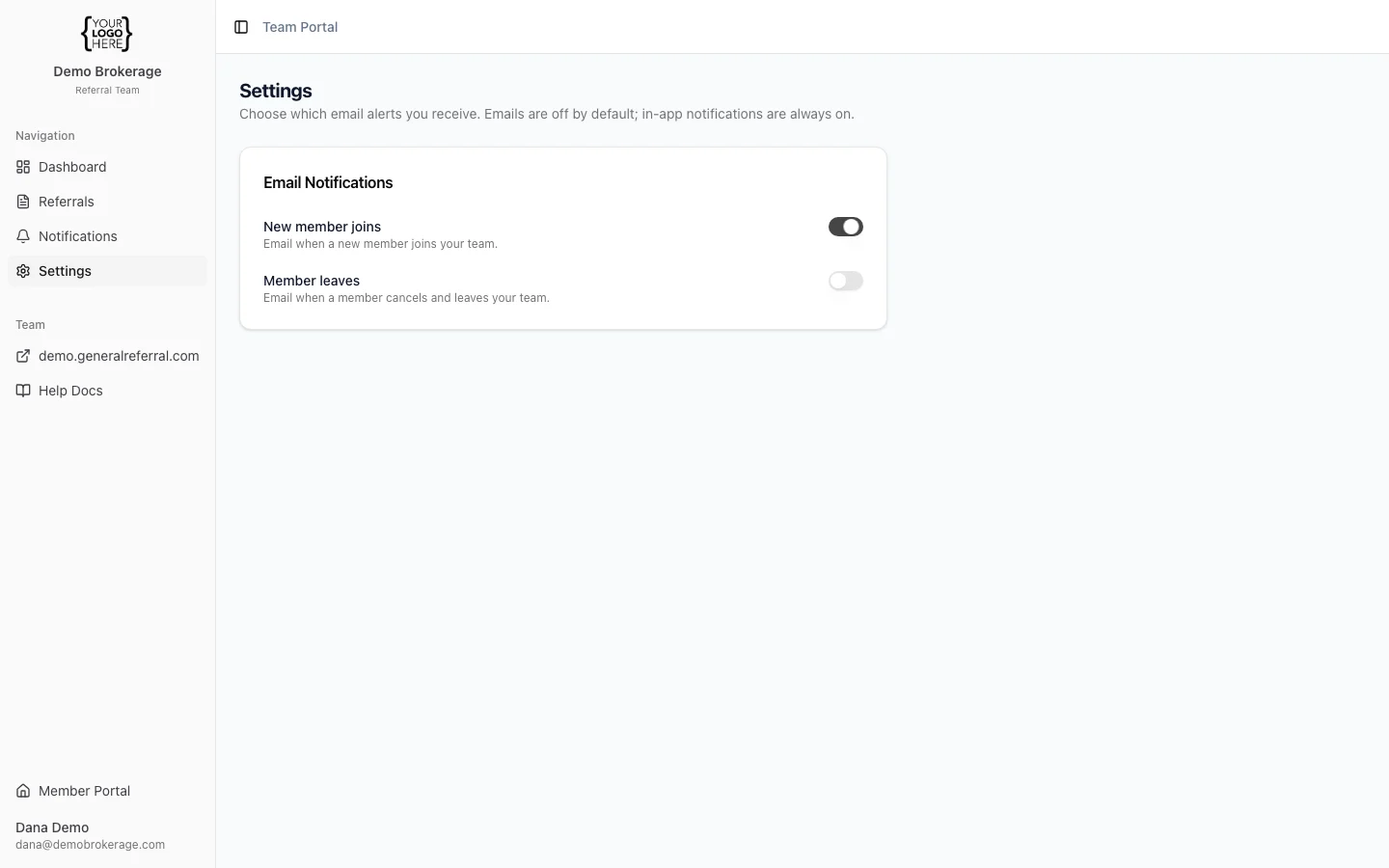
* Go to **Settings → Email Notifications**.
* Emails are **off by default** — flip on the ones you want. The toggles only
control email; the in-app feed keeps working either way.
**Two ways you're notified:**
* **In-app feed** — open **Notifications** in the portal. A badge on the menu shows
how many are unread; "Mark all as read" clears it. The in-app feed is always
on — every team event lands here.
* **Email** — the same alerts can also be sent to your inbox. You choose which.
**What you're notified about:**
* **A new member joins** your team
* **A member leaves** (their subscription is canceled)
* **A referral awaits your assignment** — a team member delegated a referral
for you to assign (see *Delegated Referrals*)
**Turning emails on:**
* Go to **Settings → Email Notifications**.
* Emails are **off by default** — flip on the ones you want. The toggles only
control email; the in-app feed keeps working either way.
 **Note:** Some alerts are always on because they need your action — for example,
when a member sends you a referral to assign (see *Delegated Referrals*). Those
can't be turned off.
**Note:** Some alerts are always on because they need your action — for example,
when a member sends you a referral to assign (see *Delegated Referrals*). Those
can't be turned off.